/* Antenna House PDF Tool API V8.0 C++ Interface sample program 概要:テキスト検索して墨消し注釈(Redact注釈)を付ける Copyright 2025 Antenna House, Inc. */ #include#include using namespace PdfTk; int main(int argc, char* argv[]) { if (argc < 4) { printf("usage: SearchTextAndRedact.exe in-pdf-file out-pdf-file keyword\n"); return 1; } try { PtlParamInput input(argv[1]); PtlParamOutput output(argv[2]); PtlParamString keyword(argv[3]); PtlPDFDocument doc; // PDFファイルをロードします。 doc.load(input); PtlColorDeviceRGB colorRed(1.0f, 0.0f, 0.0f); PtlColorDeviceRGB colorGreen(0.0f, 1.0f, 0.0f); PtlColorDeviceRGB colorBlue(0.0f, 0.0f, 1.0f); // 検索の為のパラメータ PtlParamSearchTextAndRedact paramSearchTextAndRedact; // 検索設定 paramSearchTextAndRedact.appendText(keyword); paramSearchTextAndRedact.setColor(colorRed); //墨消し注釈 アウトラインの色。設定しない場合は赤色になります。 paramSearchTextAndRedact.setInteriorColor(colorGreen); //墨消し注釈 塗りつぶしの色。設定しない場合は無色になります。 paramSearchTextAndRedact.setOpacity(0.5f); //注釈の透明度。塗りつぶし色に適用されます。設定しない場合は「1.0f」(=不透明) paramSearchTextAndRedact.setMaskColor(colorBlue); //マスク(墨消し領域)の色 (→墨消しが適用された後の色)。設定しない場合は黒色になります。 // 検索実行 doc.searchTextAndDoProcess(paramSearchTextAndRedact); // ファイルに保存します。 doc.save(output); printf("完了!\n"); } catch (const PtlException &e) { fprintf(stderr, "Error code : %d\n %s\n", e.getErrorCode(), e.getErrorMessage().c_str()); return 1; } return 0; }


PDF Tool APIサンプルコード:テキスト検索:検索&Redact注釈
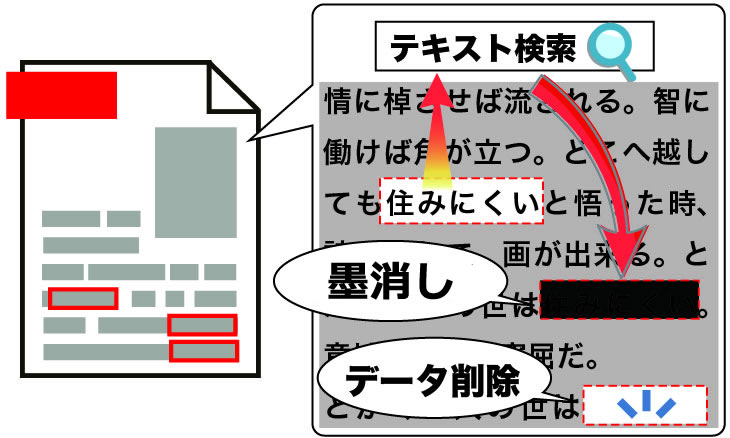
テキスト検索して墨消し注釈(Redact注釈)を付けます。
概要
サンプルコードの概要
テキスト検索して墨消し注釈(Redact注釈)を付けます。
- PtlParamSearchTextAndRedact: テキスト検索してRedaction注釈をつけるパラメータを表現したクラス
- PtlParamSearchTextAndRedact.appendText(keyword):
- PtlParamSearchTextAndRedact.setColor(colorRed): 墨消し注釈 アウトラインの色。設定しない場合は赤色になります。
- PtlParamSearchTextAndRedact.setInteriorColor(colorGreen): 墨消し注釈 塗りつぶしの色。設定しない場合は無色になります。
- PtlParamSearchTextAndRedact.setOpacity(0.5f): 注釈の透明度。塗りつぶし色に適用されます。設定しない場合は「1.0f」(=不透明)
- PtlParamSearchTextAndRedact.setMaskColor(colorBlue): マスク(墨消し領域)の色 (→墨消しが適用された後の色)。設定しない場合は黒色になります。
- PtlPDFDocument.searchTextAndDoProcess(PtlParamSearchTextAndRedact): テキスト検索して後処理
サンプルコード
/*
    Antenna House PDF Tool API V8.0
    Java Interface sample program

    概要:テキスト検索して墨消し注釈(Redact注釈)を付ける

    Copyright 2025 Antenna House, Inc.
*/

package Sample;

import jp.co.antenna.ptl.*;

public class SearchTextAndRedact {

    /**
     * @param args the command line arguments
     */
    public static void main(String[] args) {
        if (args.length < 3)
        {
            System.out.println("usage: java SearchTextAndRedact in-pdf-file out-pdf-file keyword");
            return;
        }

        try (PtlParamInput inputFile = new PtlParamInput(args[0]);
             PtlParamOutput outputFile = new PtlParamOutput(args[1]);
             PtlPDFDocument doc = new PtlPDFDocument())
        {
            // PDFファイルをロード
            doc.load(inputFile);

            try (PtlParamSearchTextAndRedact paramSearchTextAndRedact = new PtlParamSearchTextAndRedact();
                 PtlColorDeviceRGB colorRed = new PtlColorDeviceRGB(1.0f, 0.0f, 0.0f);
                 PtlColorDeviceRGB colorGreen = new PtlColorDeviceRGB(0.0f, 1.0f, 0.0f);
                 PtlColorDeviceRGB colorBlue = new PtlColorDeviceRGB(0.0f, 0.0f, 1.0f))
            {
                // 検索設定
                paramSearchTextAndRedact.appendText(args[2]);
                paramSearchTextAndRedact.setColor(colorRed);            // 墨消し注釈 アウトラインの色。設定しない場合は赤色になります。
                paramSearchTextAndRedact.setInteriorColor(colorGreen);	// 墨消し注釈 塗りつぶしの色。設定しない場合は無色になります。
                paramSearchTextAndRedact.setOpacity(0.5f);				// 注釈の透明度。塗りつぶし色に適用されます。設定しない場合は「1.0f」(=不透明)
                paramSearchTextAndRedact.setMaskColor(colorBlue);		// マスク(墨消し領域)の色 (→墨消しが適用された後の色)。設定しない場合は黒色になります。

                // 検索してマスク処理実行
                doc.searchTextAndDoProcess(paramSearchTextAndRedact);
            }

            // ファイルに保存します。
            doc.save(outputFile);
        }
        catch (PtlException pex) {
             System.out.println("PtlException : ErrorCode = " + pex.getErrorCode() + "\n  " + pex.getErrorMessage());
        }
        catch (Exception ex) {
            System.out.println(ex.getMessage());
            ex.printStackTrace();
        }
        catch (Error ex) {
            System.out.println(ex.getMessage());
            ex.printStackTrace();
        }
        finally {
            System.out.println("-- 完了 --");
        }
    }
}
/*
	Antenna House PDF Tool API V8.0
	.NET Interface sample program

	概要:テキスト検索して墨消し注釈(Redact注釈)を付ける

	Copyright 2024-2025 Antenna House, Inc.
*/

using System;
using PdfTkNet;

namespace SearchTextAndRedact
{
    class Program
    {
        static void Main(string[] args)
        {
            if (args.Length < 3)
            {
                Console.WriteLine("usage: SearchTextAndRedact.exe in-pdf-file out-pdf-file keyword");
                return;
            }

            try
            {
                using (PtlParamInput inputFile = new PtlParamInput(args[0]))
                using (PtlParamOutput outputFile = new PtlParamOutput(args[1]))
                using (PtlPDFDocument doc = new PtlPDFDocument())
                {
                    // PDFファイルをロードします。
                    doc.load(inputFile);

                    using (PtlParamSearchTextAndRedact paramSearchText = new PtlParamSearchTextAndRedact())  // 検索の為のパラメータ
		            using (PtlColorDeviceRGB colorRed = new PtlColorDeviceRGB(1.0f, 0.0f, 0.0f))
		            using (PtlColorDeviceRGB colorGreen = new PtlColorDeviceRGB(0.0f, 1.0f, 0.0f))
		            using (PtlColorDeviceRGB colorBlue = new PtlColorDeviceRGB(0.0f, 0.0f, 1.0f))
                    {
                        // 検索設定
                        paramSearchText.appendText(args[2]);
                        paramSearchText.setColor(colorRed);				//墨消し注釈 アウトラインの色。設定しない場合は赤色になります。
                        paramSearchText.setInteriorColor(colorGreen);	//墨消し注釈 塗りつぶしの色。設定しない場合は無色になります。
                        paramSearchText.setOpacity(0.5f);				//注釈の透明度。塗りつぶし色に適用されます。設定しない場合は「1.0f」(=不透明)
                        paramSearchText.setMaskColor(colorBlue);		//マスク(墨消し領域)の色 (→墨消しが適用された後の色)。設定しない場合は黒色になります。

                        // 検索実行
                        doc.searchTextAndDoProcess(paramSearchText);
                    }

                    // ファイルに保存します。
                    doc.save(outputFile);
                }
            }
            catch (PtlException pex)
            {
                Console.WriteLine(pex.getErrorCode() + " : " + pex.getErrorMessageJP());
                pex.Dispose();
            }
            catch (Exception ex)
            {
                Console.WriteLine(ex.Message);
            }
            finally
            {
                Console.WriteLine("-- 完了 --");
            }
        }
    }
}
「準備中」
実行例
コマンドラインでの実行例
SearchTextAndRedact.exe C:\in\gon.pdf C:\sav\outSearchTextAndRedact.pdf "ごんは"
完了!
java -jar SearchTextAndRedact.jar C:\in\gon.pdf C:\sav\outSearchTextAndRedact.pdf "ごんは"
-- 完了 --
SearchTextAndRedact.exe C:\in\gon.pdf C:\sav\outSearchTextAndRedact.pdf "ごんは"
-- 完了 --
「準備中」
出力結果イメージ
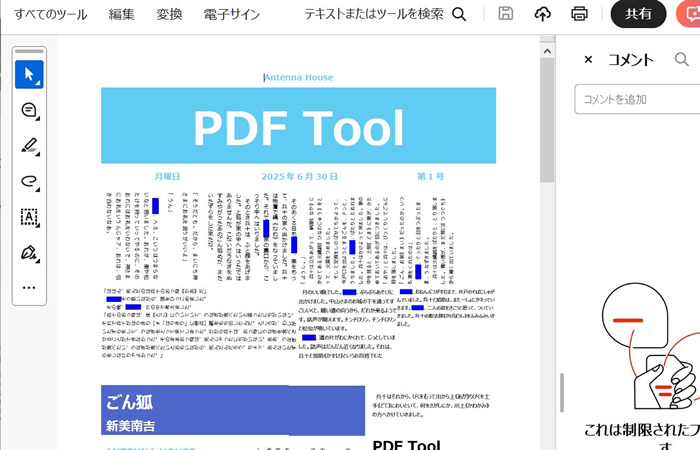
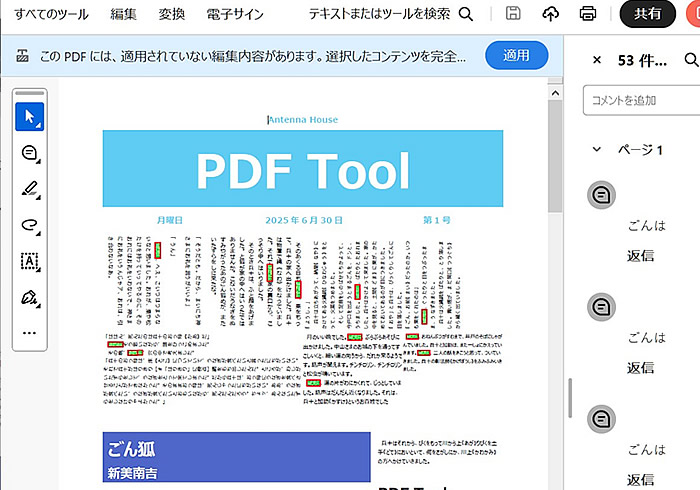
指定したキーワード”ごんは”にRedact注釈がついたPDFが出力されます。
Acrobat では上部に「このPDFには、適用されていない編集内容があります。選択したコンテンツを完全に削除するには「適用」を選択します。」と表示されます。
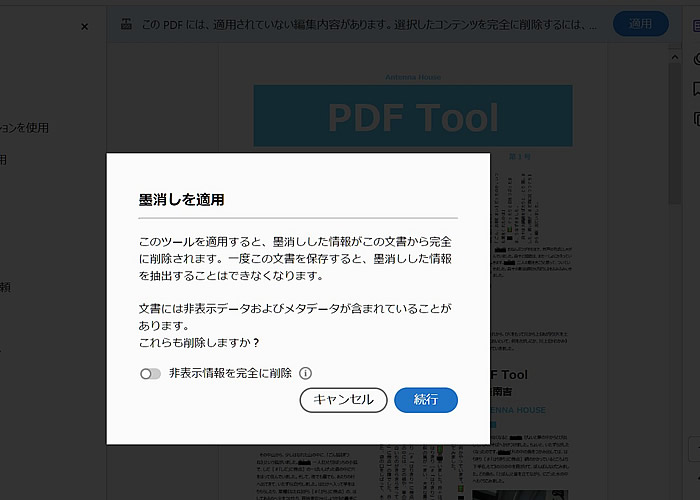
上記にしたがって「適用」を選択すると「墨消しを適用」という確認が表示されます。
「続行」ボタンを押します。
末尾に「_墨消し済み」が追加されたファイル名で出力されます。
指定した文字列が削除されています。